


















 Parks
Parks
 Children’s Playgrounds
 Walking Trails
 Beaches






Coupon User Guide
How to Use
City Info
Coupons
Follow the entire process step by step, learn how to use coupons and enjoy discounts with our partners.
Reserve your coupon in advance, then activate and redeem it only after arriving at the business location.
Why Choose City Info Coupons?
Spend less on the things you already buy. Fast, simple, fully digital and without unnecessary paper coupons.
Real Savings
Use coupons, get discounts and reduce your expenses.
Verified
Offers from trusted City Info partners.
My Coupons
Your selected coupons are always available in the app.
Simple
Activate your coupon whenever you arrive at the location.
Where Can You Find Coupons?
You can find coupons in several places across the platform. No matter where you start, reserving a coupon always works the same way.
Coupons
Browse all active coupons available on the platform.
Business Profile
View all coupons available on a business profile.
User Dashboard
Access all your coupons after signing in.
Phase 1: Reserve Your Coupon
Reserving a coupon is completely free and takes only a few seconds. You activate it only after arriving at the business location, when you are ready to redeem it.
Choose a Coupon and Reserve It
On the Coupons page or a Premium business profile, find the offer you want and click the "Reserve Coupon" button.
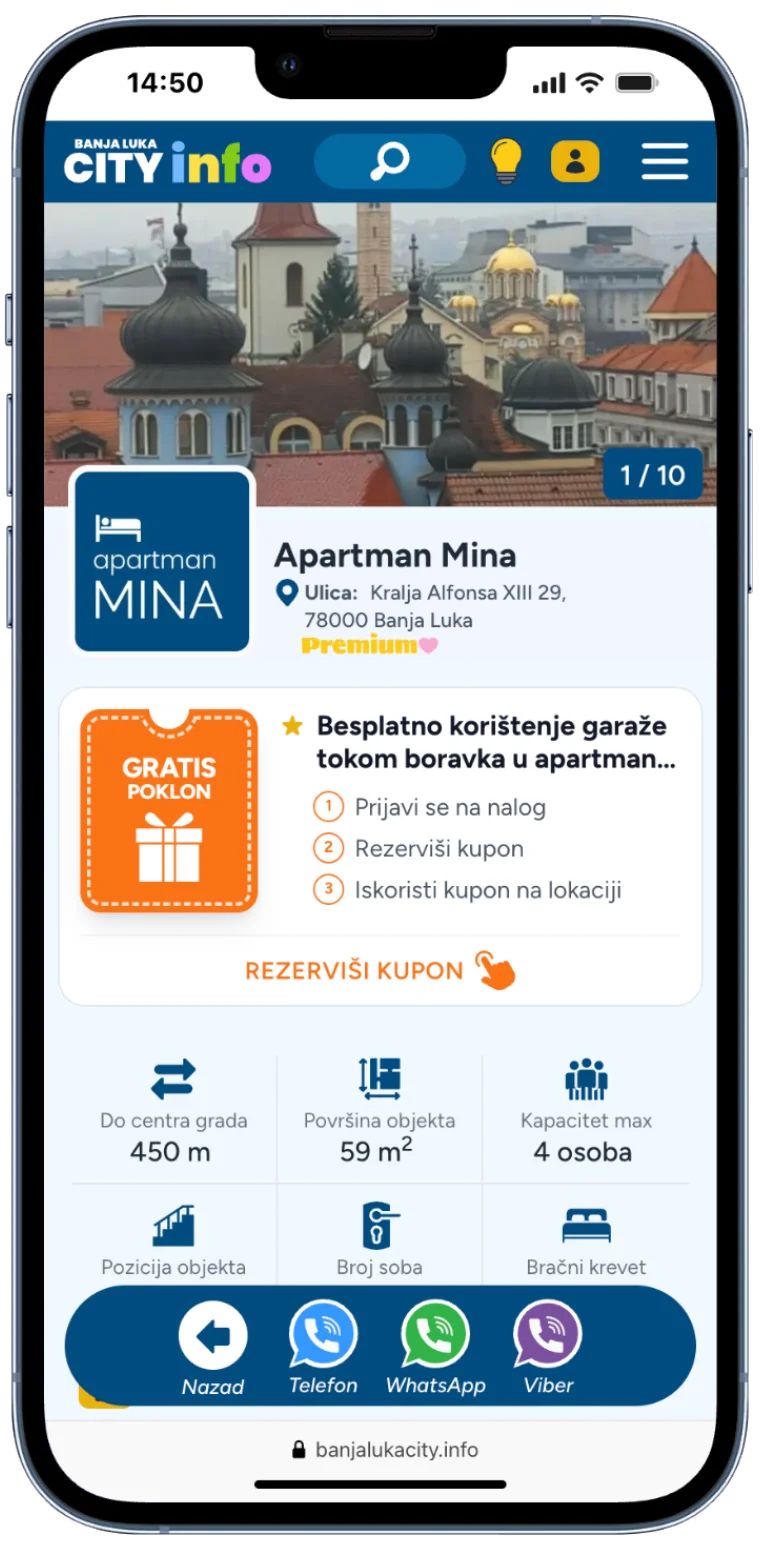
*Coupon displayed on a business profile.
Review the Details and Confirm
Check how to use the coupon, its validity period and other details, then click the "Confirm Reservation" button.
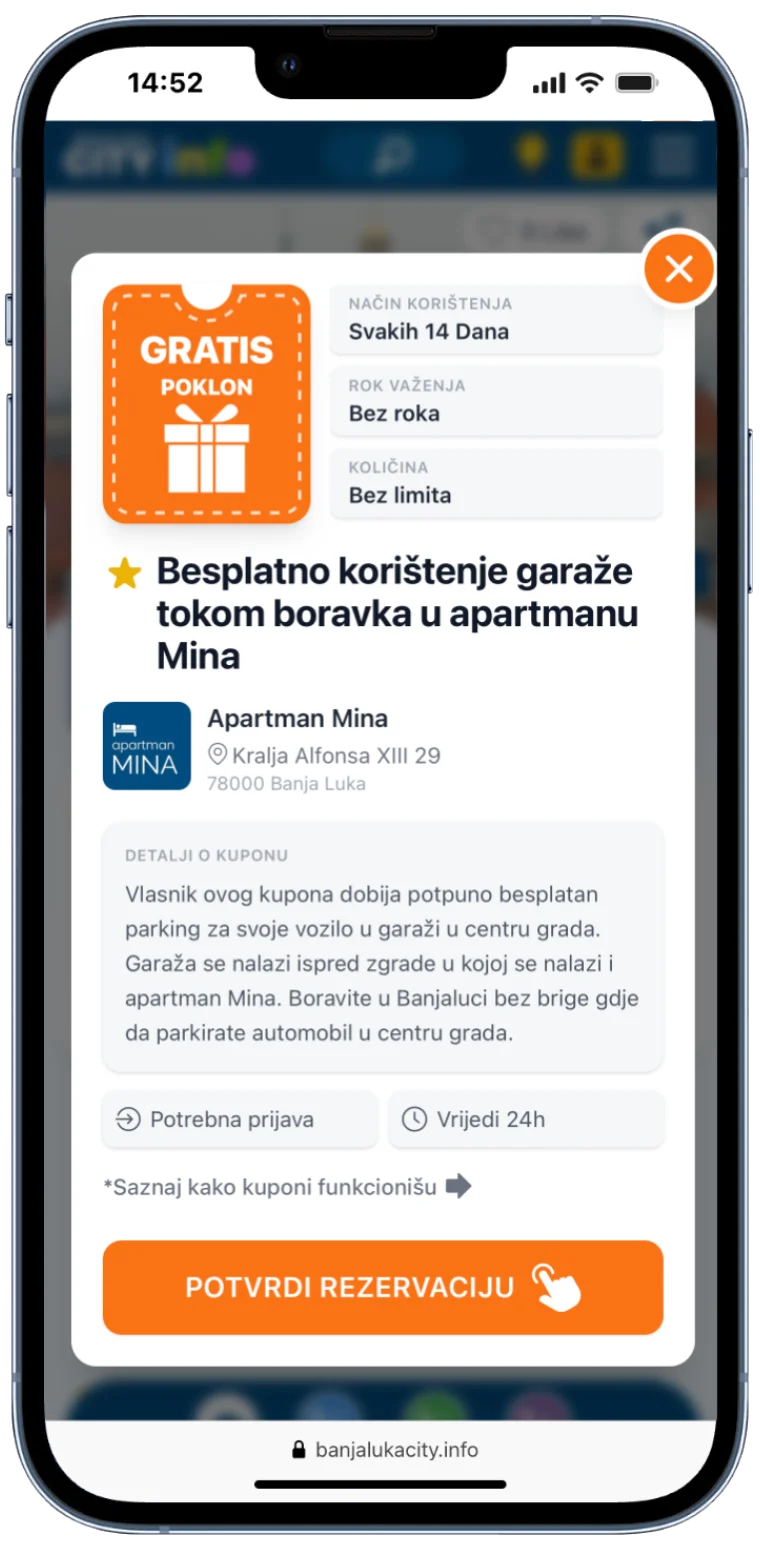
*Window with coupon details and confirmation.
Sign In and Continue
If you are not signed in, log in using your Google account or email, then confirm your coupon reservation.
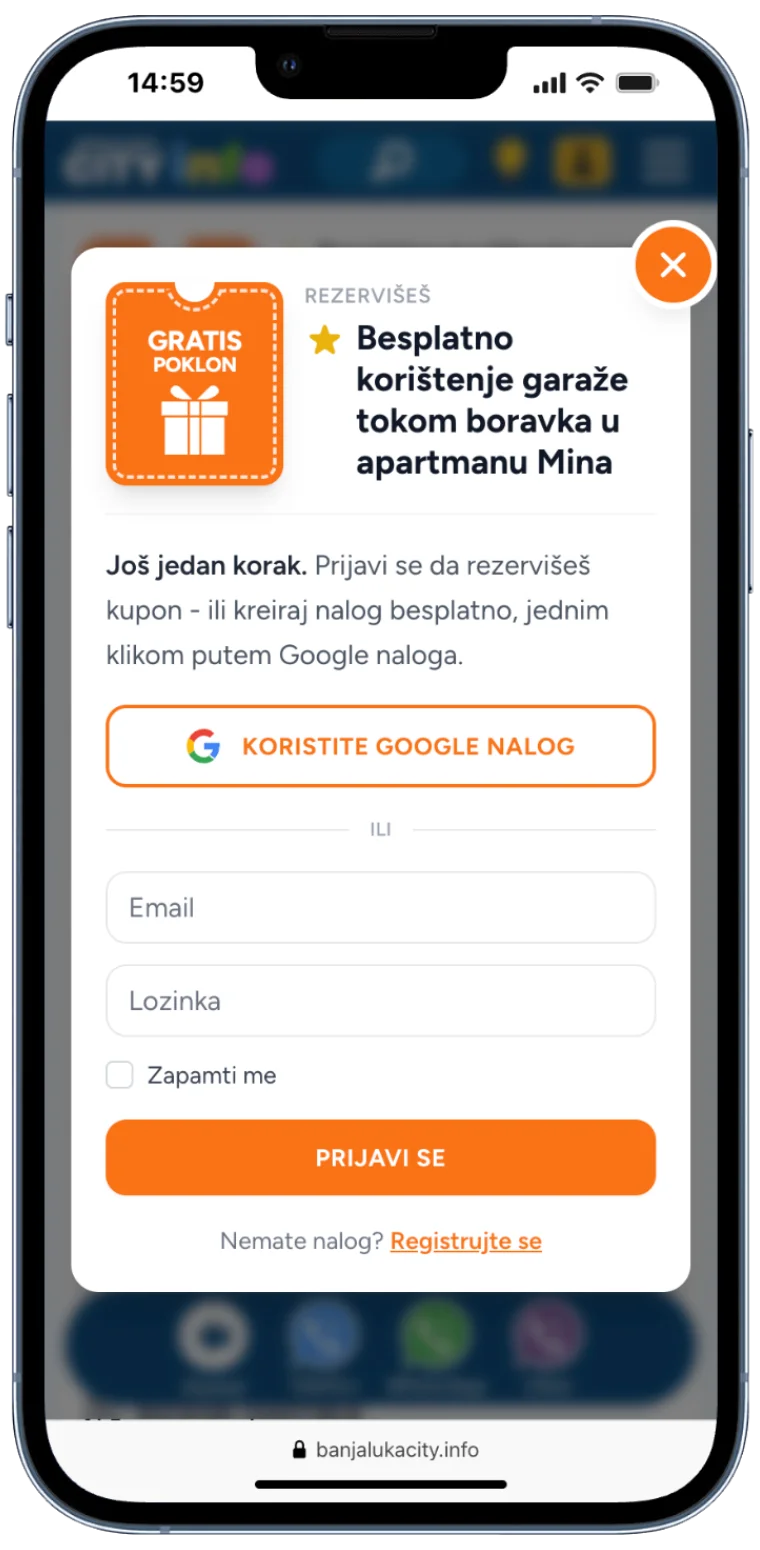
*Sign in with your Google account or email.
Coupon Successfully Reserved
Your reservation is complete. The coupon will remain available in the "My Coupons" section until you activate it.
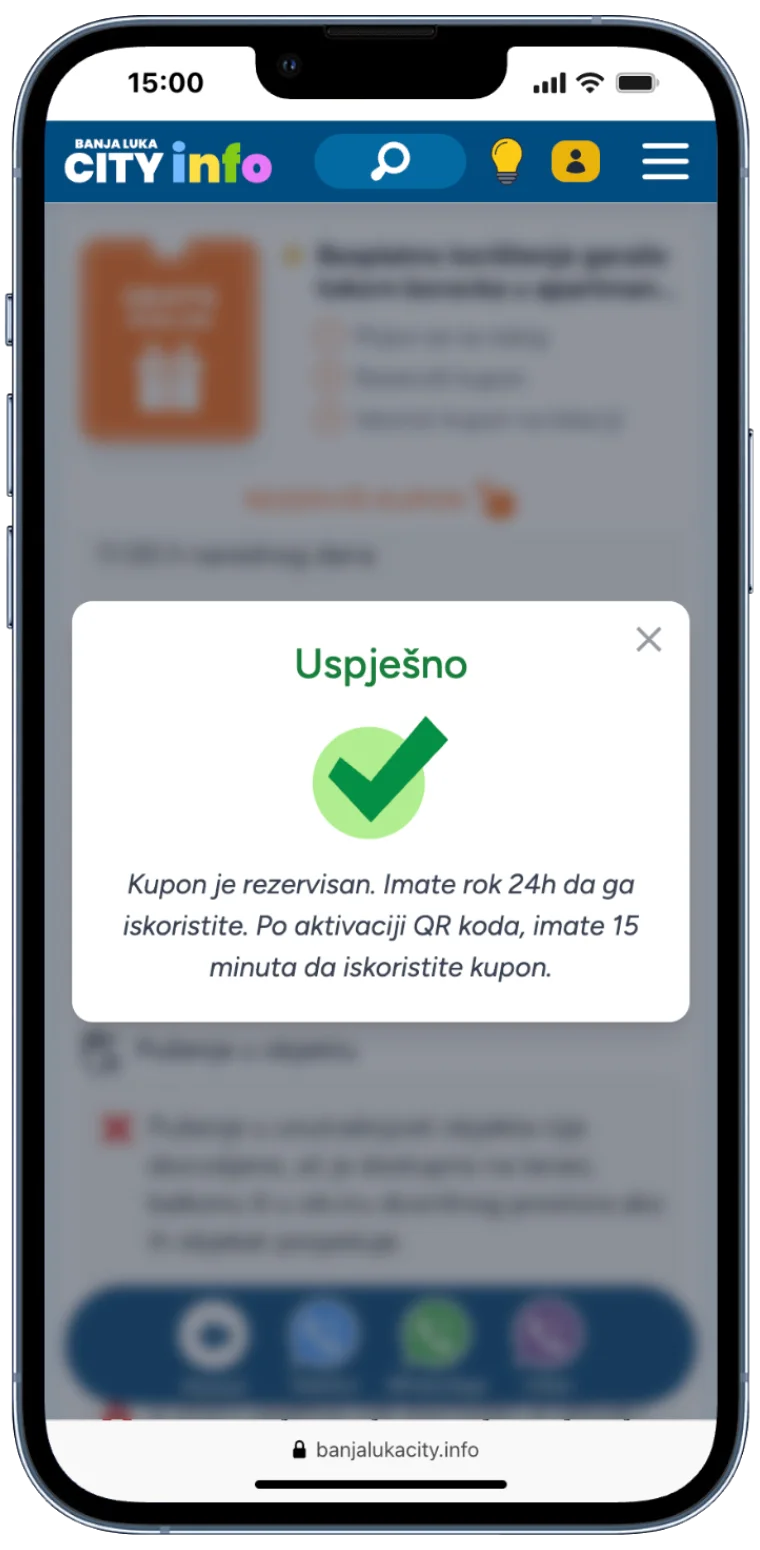
*Notification: "Coupon reserved".
Phase 2: Activate and Redeem
Once you arrive at the business location and are ready to use your coupon, open it from the "Active Coupons" section and activate it. After activation, the countdown begins, and the coupon must be redeemed before the timer expires.
Open the Coupon and Activate It
In the "Active Coupons" section, find your reserved coupon and click the green REDEEM button.
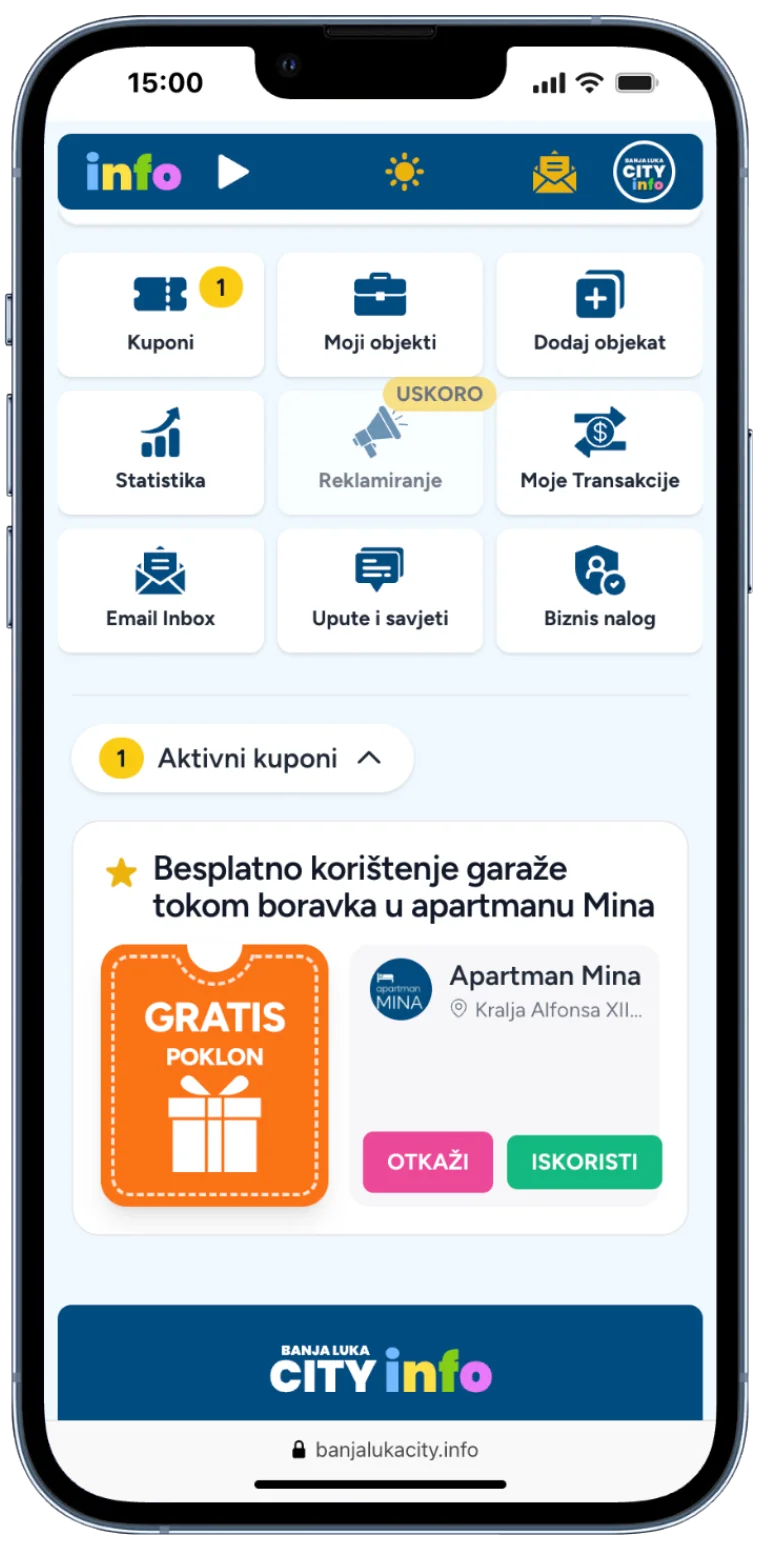
*User dashboard with coupon list.
Show the QR Code to an Employee
After activation, a QR code appears. An employee scans it to confirm that the coupon has been redeemed.
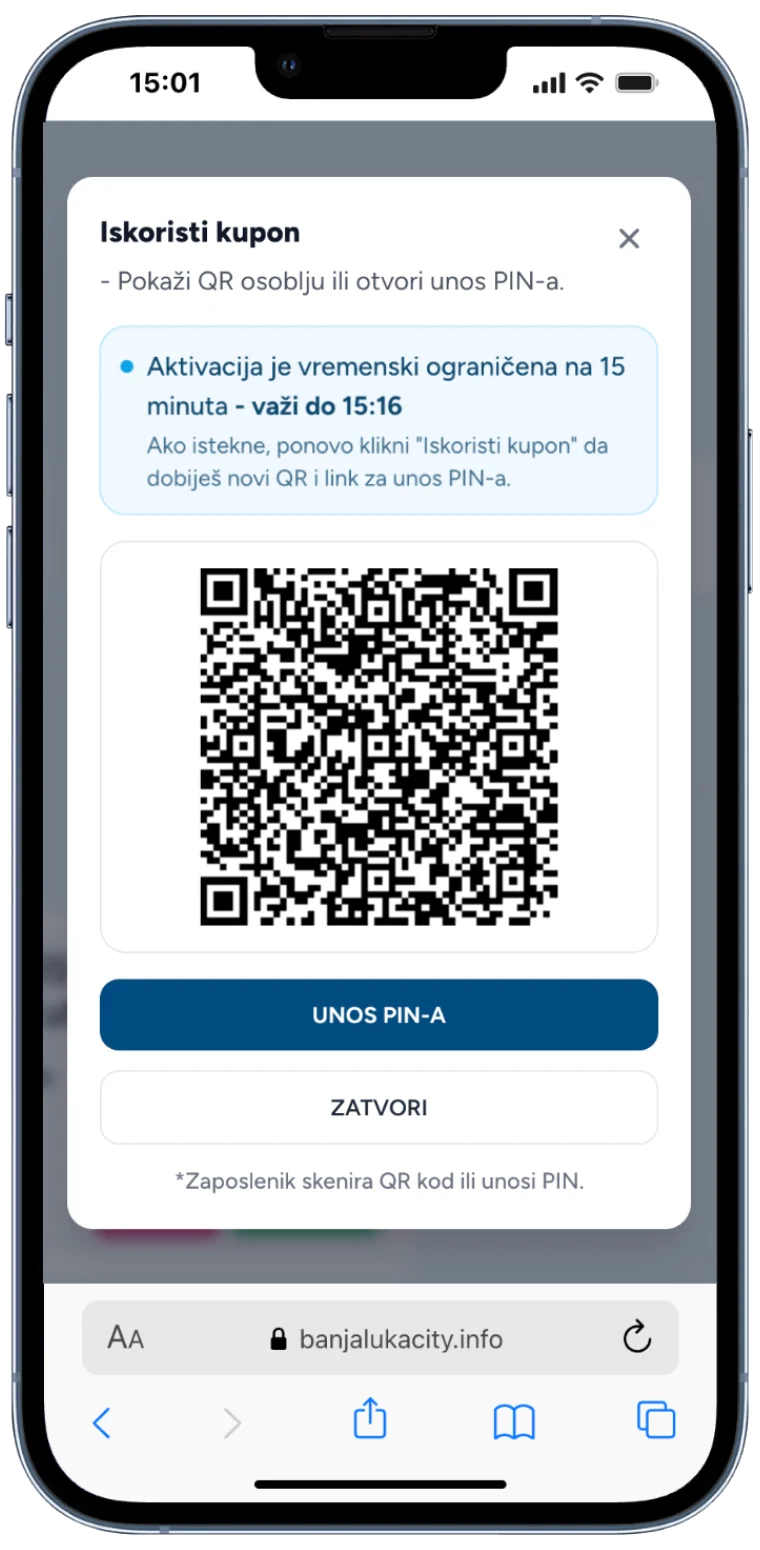
*QR code with activation countdown.
Employee Confirms the Coupon
After scanning the QR code or opening the verification page, the employee enters their PIN to confirm the coupon.
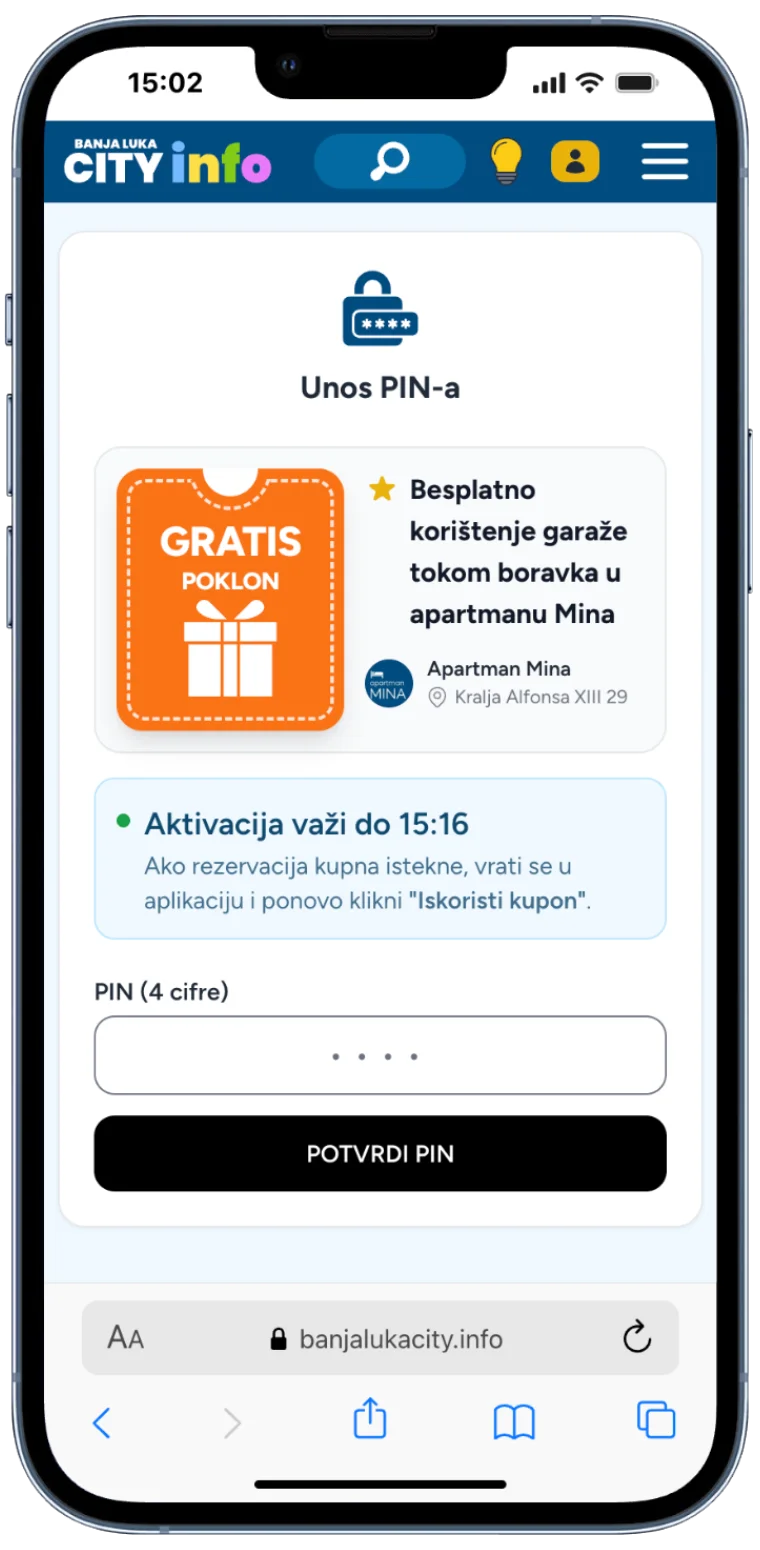
*PIN entry page.
Coupon Successfully Redeemed
The system verifies the coupon, and you receive the selected discount or benefit.
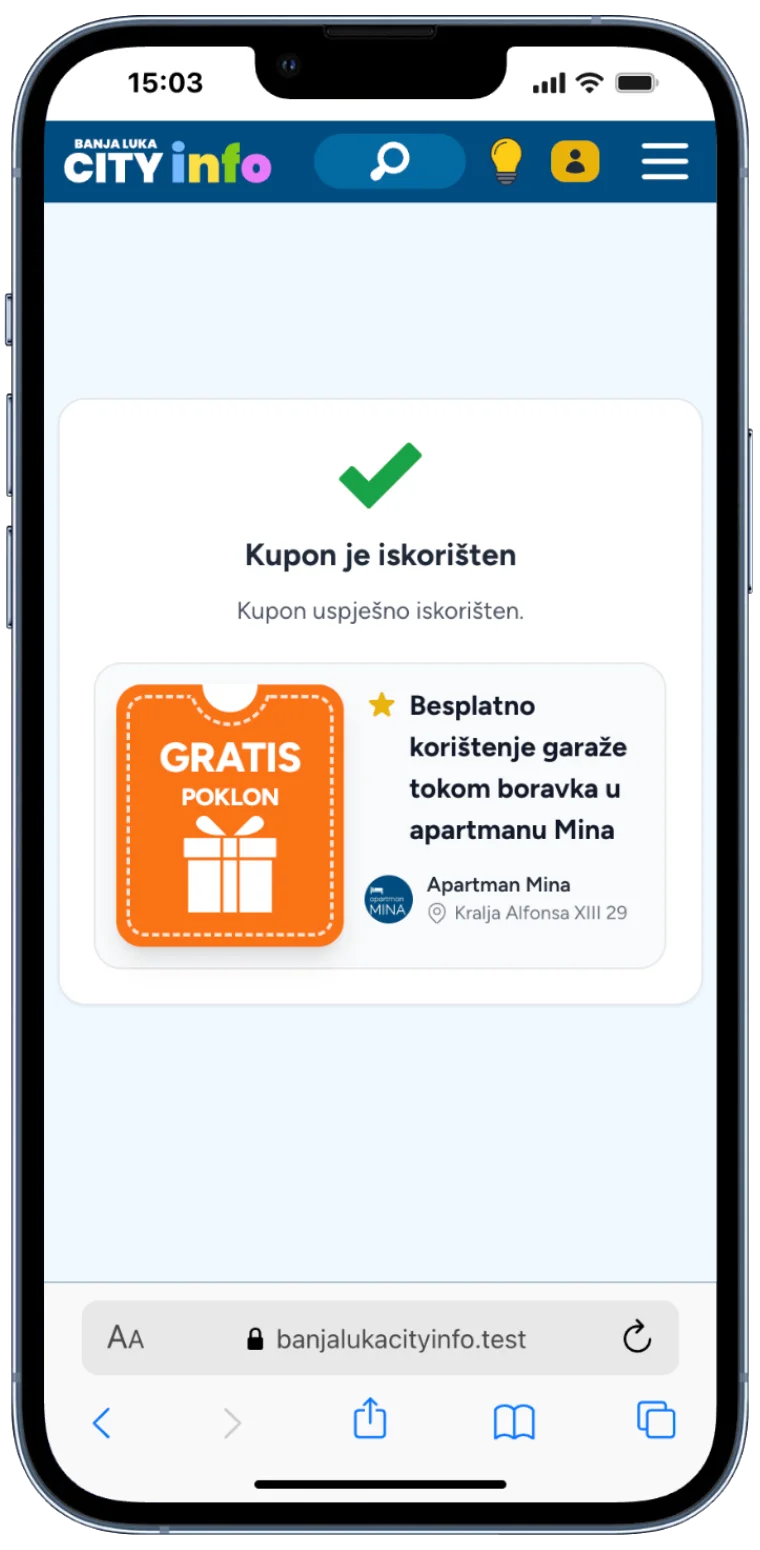
*Notification: "Coupon redeemed".
Canceling a Reservation
Changed your mind? You can cancel your reservation in just a few clicks. Once canceled, the coupon becomes available again and can be reserved again if the offer is still active.
Find the Coupon
Open the reserved coupon in the "Active Coupons" section.
Confirm Cancellation
Click "Cancel" and confirm that you want to cancel the reservation.
Coupon Available Again
The coupon is available for reservation again.
Need More Help?
In our Help Center, you will find answers to additional questions about using coupons.
Find the Perfect Coupon
Choose an offer that suits you, reserve it in just a few clicks and enjoy your first savings.