


Restaurants
Pizzerias
Grills
Burek and pies
Lounge bar
Kebab and Gyros
Pastry Shops
Bakeries
Fast food
Coffee & Bar
Night club
Meat roasters
Catering
Butcher Shop
Wineries & Distilleries
Pubs
Cakes
Beekeepers and Honey
Pancake Shops
Gourmet Shops
Liquor Store
Food Delivery
Gourmet Products
Vending Machines
Architects and Design
Finishing Works
Construction Equipment
Alu & PVC Joinery
Machinery
Building Depot
Stonemasons
Construction Firms
Electrical Work
Paint & Coatings
Tools & Machines
Heating
Facades & Insulation
Tiles & Ceramics
Cooling & Ventilation
Waste Removal
Prefab Homes
Real Estate
Bathroom Fixtures
Plumber
Auto Parts
Auto scrap
Driving school
Car electrician
Detailing & Tuning
Auto cosmetics
Panel Beater & Car Painter
Auto mechanic
Autogas
Car wash
Car Glass
Car Alarms & Security
Roadside assistance
Car Showrooms
Vulcanizer
Exhaust service
Battery service
Buying a vehicle
Heating and air conditioning
Car Lots
Moto Dealers
Motorcycle Services
Plastic Welding


Service information

Information for foreign citizens

Traffic information

Javne institucije

Informacije o sportu













The whole city in your pocket.
Everything you need
at your fingertips.
Add City Info to the Home Screen of your iPhone or Android phone in just a few simple steps and access everything with a single tap.
Adding it to your Home Screen takes less than a minute and doesn't require downloading it from the App Store or Google Play.
Why add City Info to your Home Screen?
Find restaurants, events, attractions, services and other useful information about Banja Luka with a single tap. The whole city in one icon on your screen.
Faster access
Everything one tap away - no web searching.
All in one place
Places, events, services and city information.
Always within reach
Add City Info to your Home Screen and use it whenever you need it.
Available offline
Previously visited pages remain available even without an internet connection.
iPhone (iOS)
On iPhone, installation is done through the Safari browser. Follow these three steps:
Open City Info in Safari
Open City Info in Safari. Tap the menu icon (three dots/lines), then select Share from the available options.
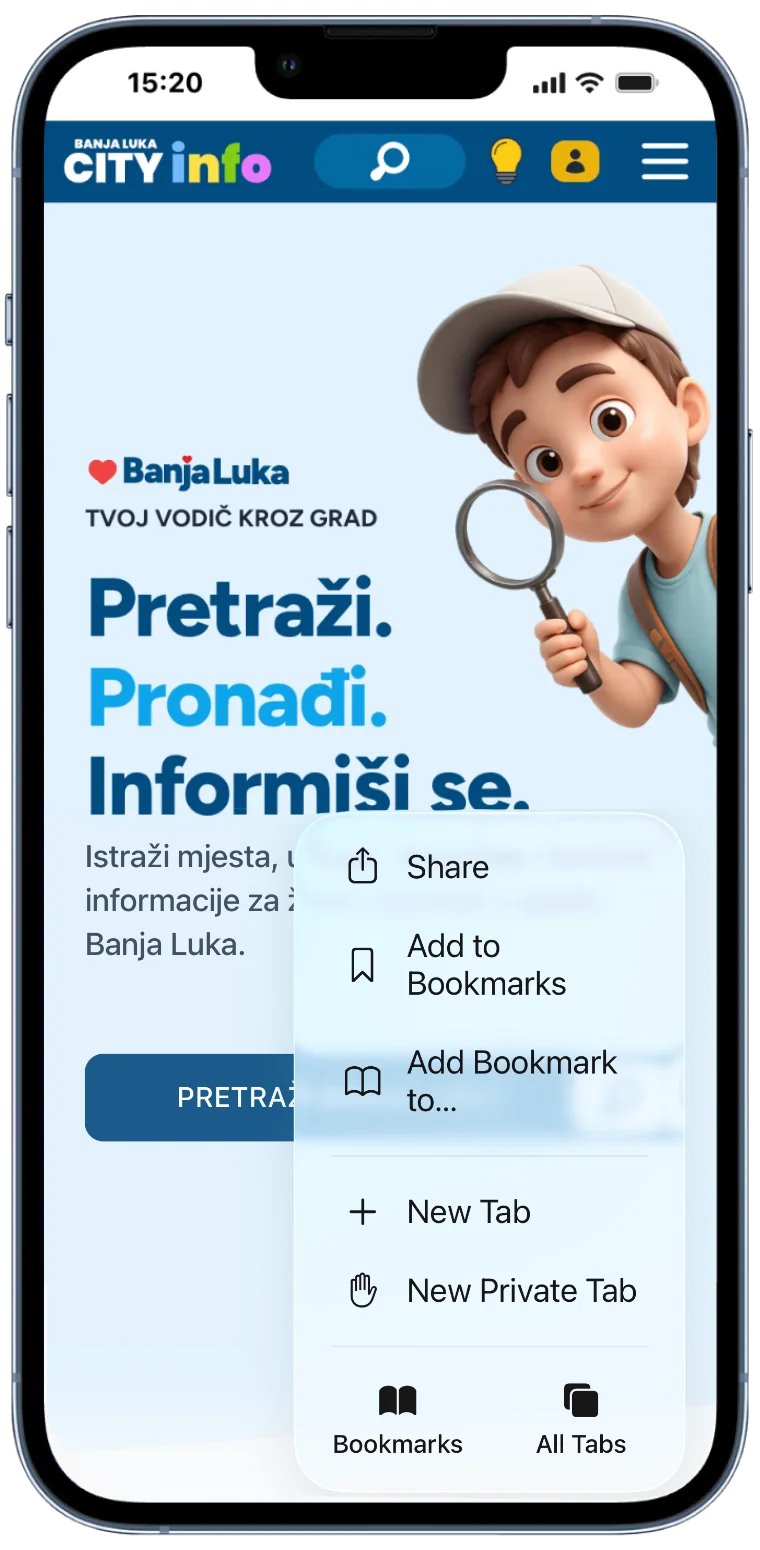
*Adding to the Home Screen is only available when using Safari on iPhone.
Select "Add to Home Screen"
In the menu, find the Add to Home Screen option. If you don't see it immediately, scroll down until it appears.
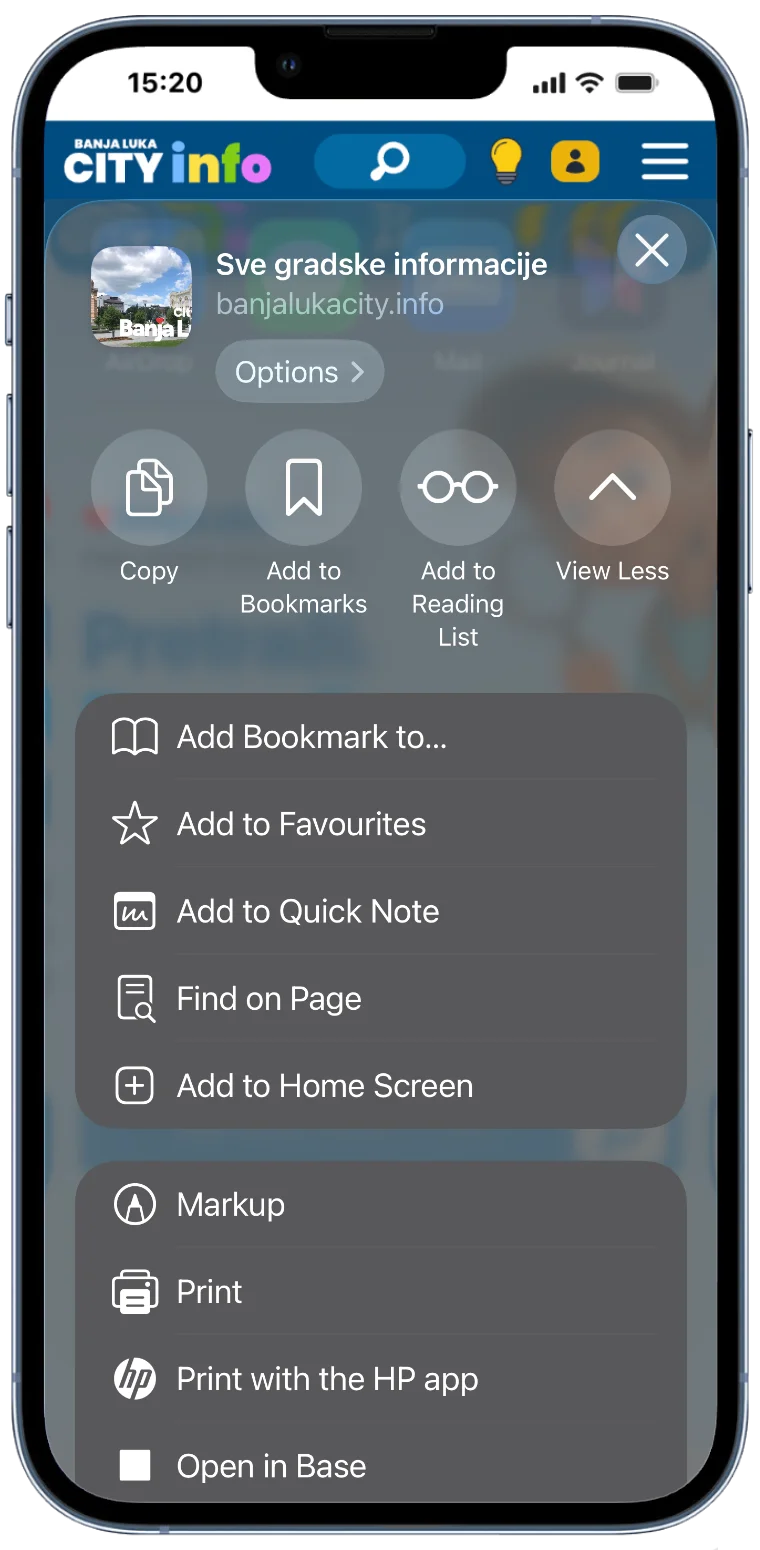
*The location of this option may vary depending on your iOS version or device.
Confirm the installation
If you wish, change the name that will appear on your Home Screen, then tap Add in the upper-right corner.
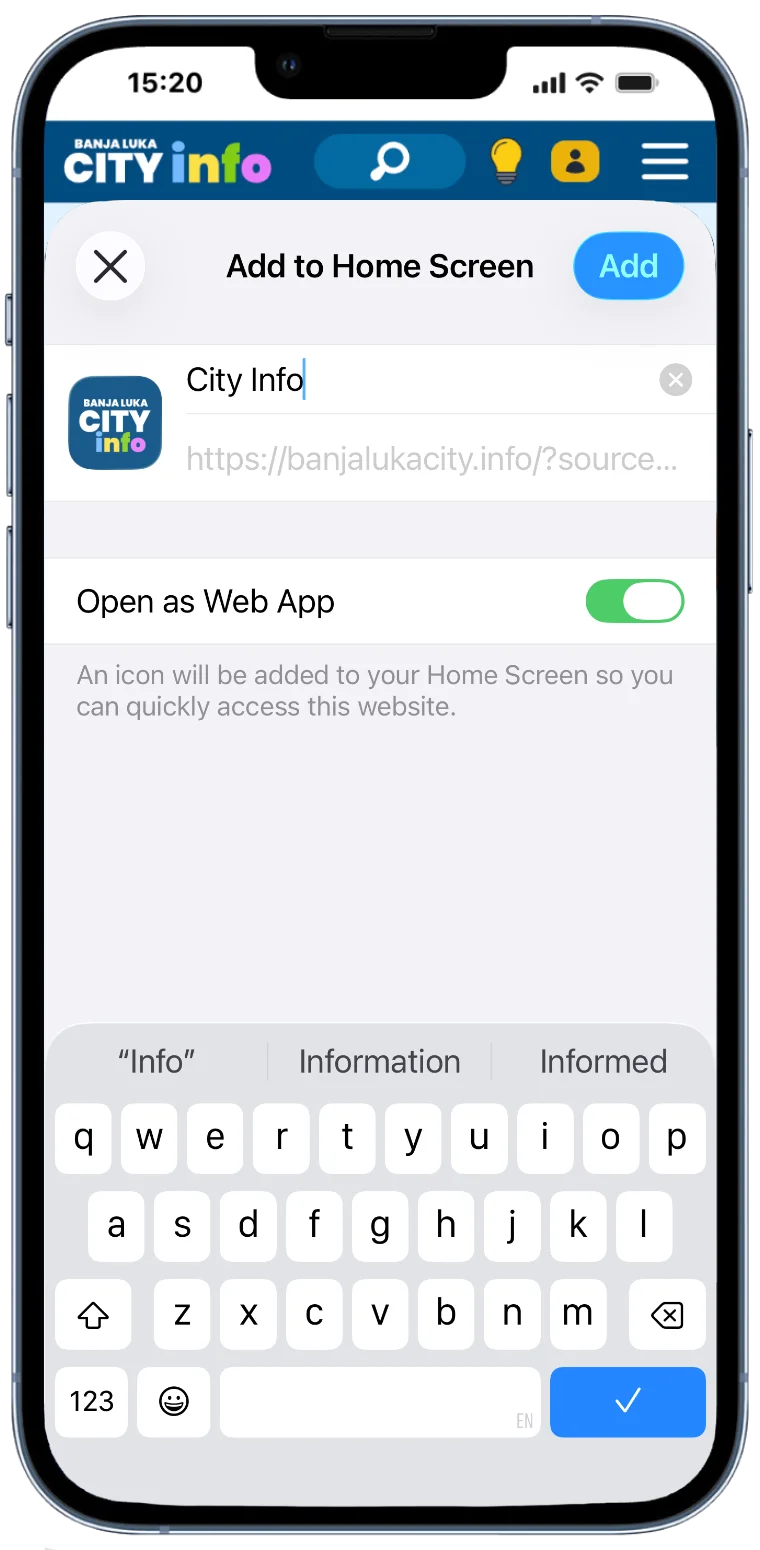
*City Info will appear on your Home Screen and will be ready to use.
Android
Installing on Android is easiest using the Chrome browser. Just follow these three steps:
Open City Info in Chrome
Open City Info in Google Chrome. Tap the three-dot menu in the top-right corner, then select Add to Home screen.
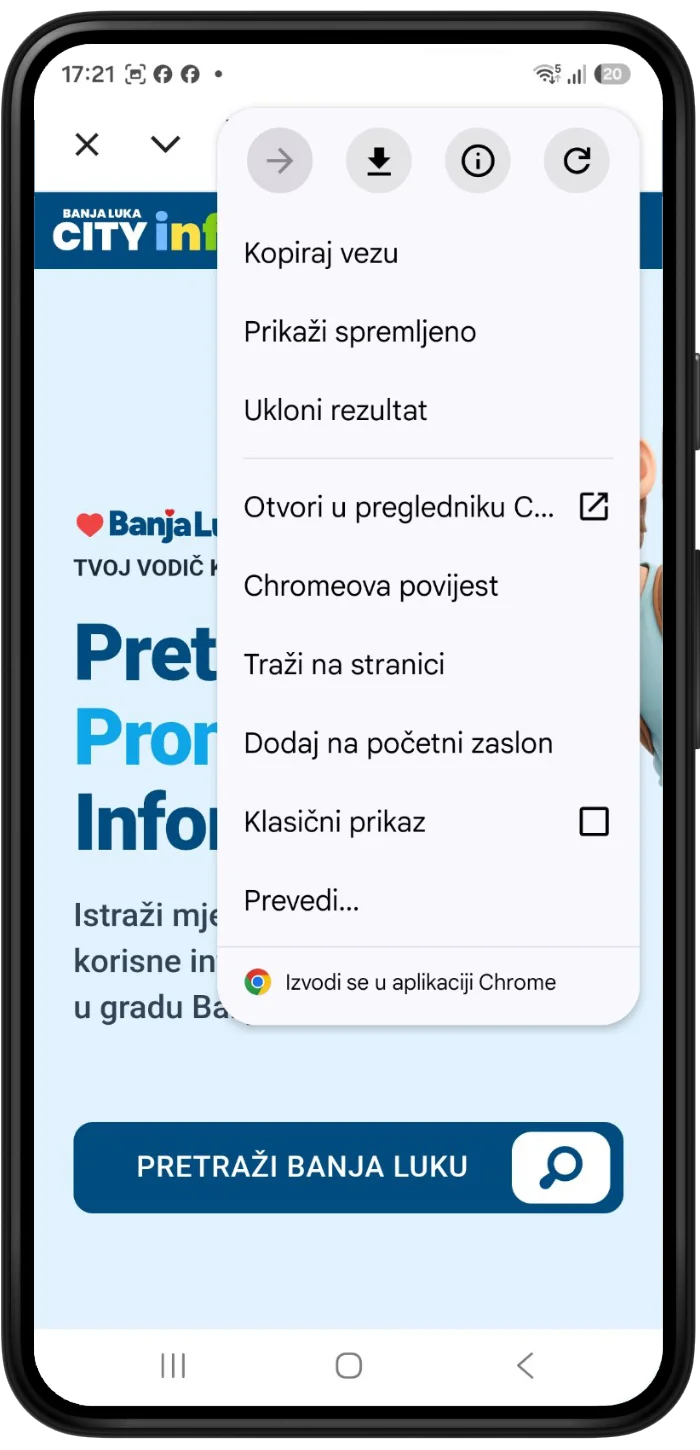
*For the best experience, we recommend installing the app using Google Chrome.
Select "Install"
When the options window appears, choose Install. Do not select Create shortcut, as installing the app enables all its features.
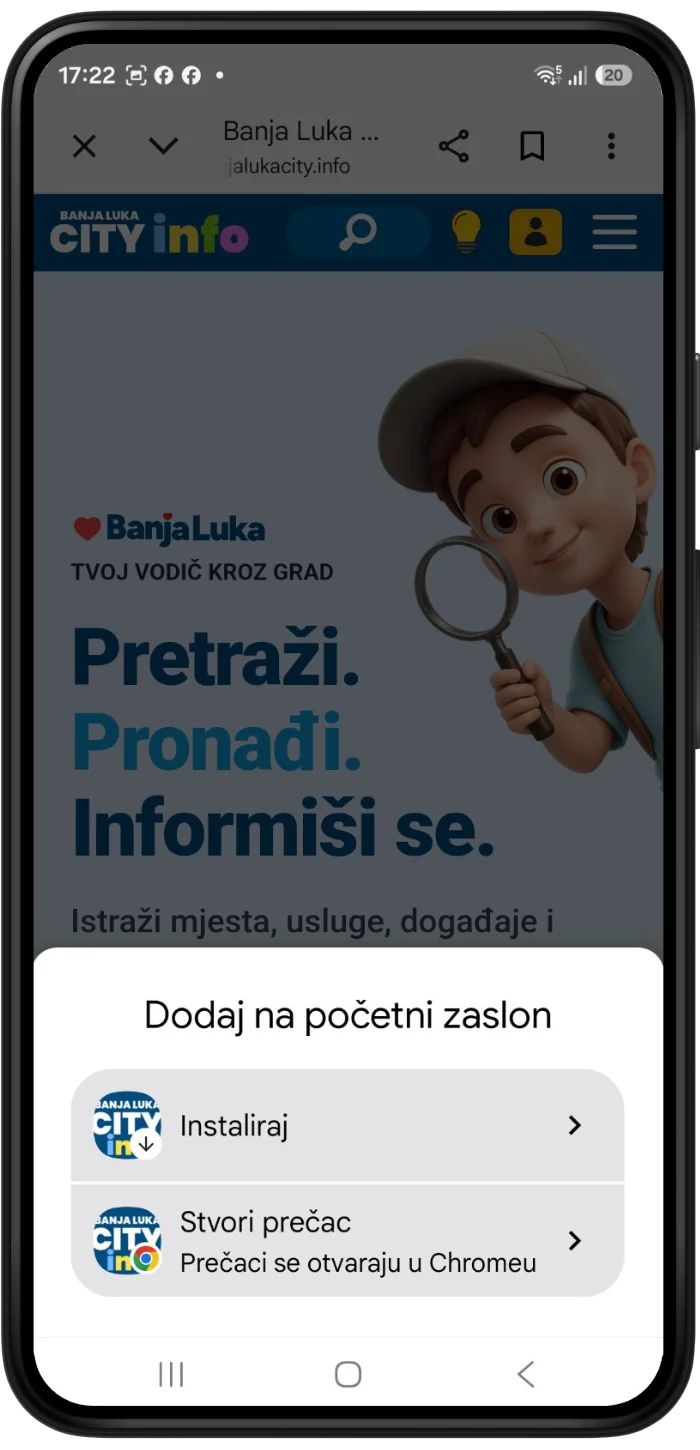
*The installed app runs faster and provides a better user experience than a regular shortcut.
Confirm the installation
In the confirmation window, tap Install and wait a few seconds. City Info will automatically be added to your phone's Home screen.
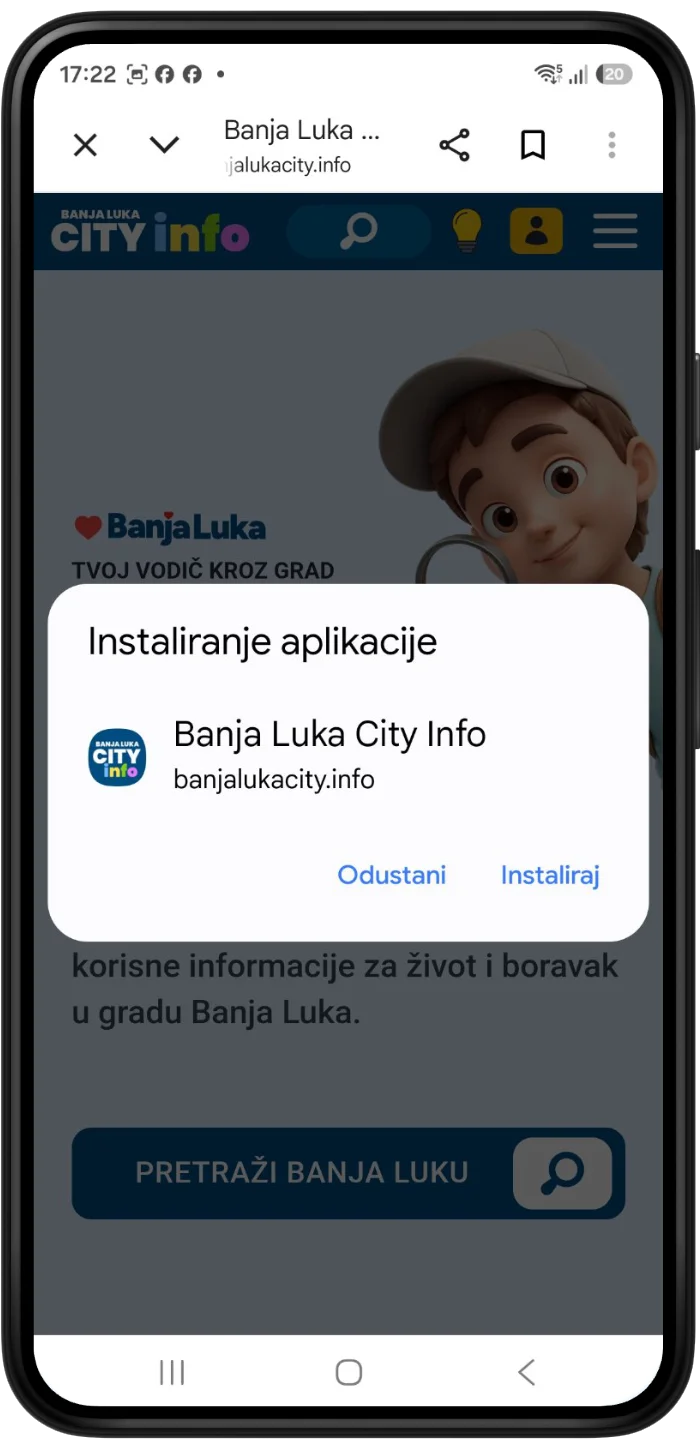
*After installation, you can launch City Info directly from your Home screen.
If Google Play Protect appears
On some Android devices, Google Play Protect may display a message while installing the web app. This is normal behavior and does not indicate a problem with the app. For the best experience, we recommend installing it using the Chrome browser.
Good to know about offline use
Pages you open while connected to the internet may remain available even when you lose your connection. Content you haven't visited yet will become available only after you open it for the first time while online.
Frequently Asked Questions
No. City Info is a web app that uses significantly less storage than traditional apps installed from the App Store or Google Play. Most content is loaded only when needed, while some data is temporarily stored to make the app faster and keep previously visited pages available even when you're offline.
Yes. City Info is added directly to your Home screen from our official website and doesn't require downloading unknown apps or software. It uses a secure HTTPS connection, and installation simply provides faster one-tap access to the content.
On some Android devices, Google Play Protect may display an informational message when installing a web app. This is a normal security check and does not indicate a problem with the app. For the best experience, we recommend installing it using the Google Chrome browser.
You can remove City Info just as easily as any other app or shortcut. Press and hold the icon on your Home screen, then choose Remove or Uninstall, depending on your device.
For most content, yes. However, pages you previously opened while online may remain available even without an internet connection. This means you can still view some previously visited information offline, while new content will be available once you reconnect to the internet.
Ready to install?
Open the website on your phone and follow the installation instructions for your device.